
 By
By 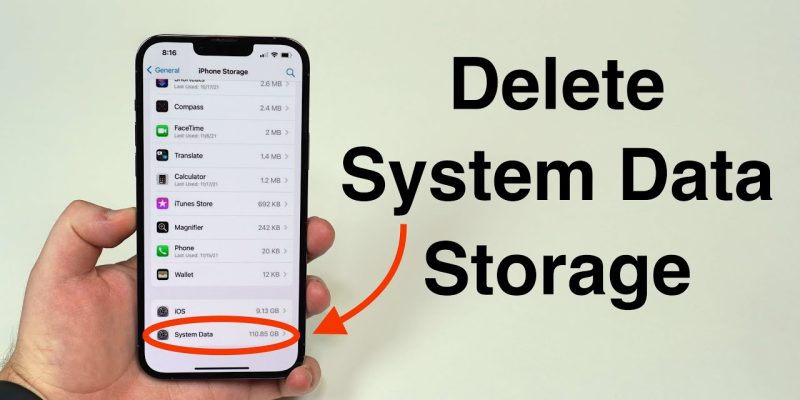
Learning How to Reduce System Data on iPhone becomes important when your storage is full even though you have not downloaded new apps and your photos are backed up. When you check Settings, you may see a large grey bar labeled “System Data” eating up gigabytes you cannot explain.
iPhone System Data (previously called ‘Other’) is a catch-all category for caches, logs, Siri voices, streaming data buffers, app temp files, and miscellaneous system storage. You can reduce it significantly by clearing Safari cache, offloading unused apps, resetting settings, managing streaming apps, and – as a last resort – doing a full backup and restore. Most people can recover 3-10GB without losing any personal data.
What Is System Data and Where Does It Come From?
| What’s Inside | What It Is | How to Reduce It |
|---|---|---|
| Safari Cache | Stored website data, images, cookies | Clear in Settings > Safari > Clear History |
| Streaming App Buffers | Temp files from Netflix, Spotify, YouTube | Delete and reinstall the app |
| Siri Voices | Downloaded offline voice packs | Settings > Accessibility > Siri > Siri Voice |
| App Caches | Temp data stored by apps for faster loading | Offload or delete individual apps |
| System Logs | Error and diagnostic logs generated by iOS | Restart device; clears automatically over time |
| iCloud Drive Cache | Locally cached iCloud files | Settings > Apple ID > iCloud > Manage Storage |
| Message Attachments | Photos/videos in Messages threads | Settings > Messages > Keep Messages > 30 Days |
| iOS Update Files | Leftover update installer files | Disappear after a full restart usually |
How to Check Your Current Storage Breakdown
- Open Settings on your iPhone
- Tap General
- Tap iPhone Storage
- Wait 30-60 seconds for the bar to fully populate (it loads gradually)
- Scroll down to see per-app storage usage and look for the System Data figure near the top
Note: if System Data appears unusually large right after checking (e.g., 40GB+), wait a day and recheck – iOS sometimes shows inflated numbers while the storage calculation is still processing.
8 Ways to Reduce System Data
Work through these in order. Most people see meaningful results after steps 1-4.
- Clear Safari Cache: Go to Settings > Safari > scroll down to Clear History and Website Data. Tap it and confirm. This is often the single biggest win – Safari cache can reach several gigabytes on an older device.
- Offload Unused Apps: Go to Settings > General > iPhone Storage > scroll down. iOS will recommend apps to offload. Offloading removes the app but keeps its data – if you reinstall, your data returns. This also clears the app’s cache.
- Delete and Reinstall Heavy Streaming Apps: Netflix, Spotify, YouTube, and podcast apps build up substantial local caches. Deleting them completely (not just offloading) clears all cached content. Reinstall and sign back in.
- Reduce Message History: Settings > Messages > Message History > Keep Messages. Change from Forever to 1 Year or 30 Days. Confirm when prompted. Old threads with photo/video attachments can use surprising amounts of storage.
- Turn Off Siri Offline Voices: Settings > Accessibility > Spoken Content or Siri > Siri Voice. If you’ve downloaded enhanced voices, they can take 300MB-1GB. Delete any voice packs you don’t actively use.
- Restart Your iPhone: A full power-off restart clears system RAM caches and some temporary log files. It sounds simple, but if you haven’t restarted in weeks, it can free up a few hundred MB.
- Reset All Settings: Settings > General > Transfer or Reset iPhone > Reset > Reset All Settings. This does NOT delete your data or apps. It resets Wi-Fi passwords, display settings, and privacy preferences – and clears some system data in the process. You’ll need to re-enter Wi-Fi passwords.
- Update iOS: Apple frequently includes System Data management improvements in iOS updates. An outdated OS can accumulate more bloat than a current one. Settings > General > Software Update.
Apps That Contribute Most to System Data Buildup
| App Type | Typical Cache Size | Fix |
|---|---|---|
| Podcast Apps (Apple Podcasts, Spotify) | 1-5GB | Delete downloaded episodes regularly |
| Music Streaming (Spotify, Apple Music) | 1-4GB | Remove offline downloads, delete and reinstall |
| Video Streaming (Netflix, YouTube) | 500MB-3GB | Delete and reinstall quarterly |
| Safari Browser | 500MB-4GB | Clear cache monthly |
| Social Media (Instagram, TikTok) | 200MB-2GB | Delete and reinstall every few months |
| Navigation (Google Maps, Waze) | 200MB-1GB | Clear offline maps you don’t use |
The Nuclear Option: Backup and Restore
If System Data is above 15-20GB and other steps haven’t worked, a full backup and restore is the most thorough solution. This process wipes the device completely and restores only your actual content – apps, photos, messages – leaving behind accumulated system bloat.
- Back up via iCloud: Settings > Apple ID > iCloud > iCloud Backup > Back Up Now
- Or back up via Mac/PC: Connect with cable, open Finder (Mac) or iTunes (PC), click Back Up Now
- Go to Settings > General > Transfer or Reset iPhone > Erase All Content and Settings
- During setup, choose Restore from Backup and select your most recent backup
Most users report recovering 5-15GB through this process. Allow 1-2 hours for the full restore.
How Much System Data Is Normal?
| iPhone Storage Capacity | Normal System Data Range | Worth Investigating If… |
|---|---|---|
| 64GB | 3-7GB | Over 12GB |
| 128GB | 5-10GB | Over 18GB |
| 256GB | 6-12GB | Over 25GB |
| 512GB+ | 8-15GB | Over 30GB |
Preventing System Data From Building Up Again
- Clear Safari cache monthly as a routine habit
- Set Messages to keep only 1 Year instead of Forever
- Enable auto-offload unused apps: Settings > App Store > Offload Unused Apps (toggle on)
- Restart your phone at least once a week – it clears temporary caches automatically
- Keep iOS updated – Apple’s storage management improves with each version
System Data will never be zero – iOS needs working space to function. But keeping it under control means your storage stays yours.









Comments